Jezzam can show different payment totals to customers and admins depending on whether prices are shown to customers.
This is useful where a booking has a price for internal tracking, but you do not want that price shown during online booking or in the customer-facing order details.
Payment information is shown to the customer if an admin later requests payment, marks the booking as paid and sends an email, or sends a payment confirmation.
This article explains how order totals, hidden prices and internal payment summaries work.
What this article covers
This article explains:
- How the 'Show price' setting affects customer-facing totals
- What customers see when a price is not shown
- What admins see in the admin panel
- Why customer-facing totals and internal totals may differ
- How hidden prices affect emails
- How admin payment actions can affect customer-facing payment information
- How reports handle payment totals
What does 'Show price' mean?
The 'Show price' setting controls whether the price for a service, event, class, course or workshop is shown to the customer.
For services, this setting is managed for each individual service via:
- Settings > Services
For events, classes, courses and workshops, this setting is managed when creating or editing the event in the Admin calendar.
If the price is shown, the customer can see the price during booking and it can be included in customer-facing order totals.
If online payment is required, the price must be shown to the customer so they can see how much they will pay at checkout.
If the price is not shown, the price is treated as internal information during the normal booking process. Customers do not see it during booking, in the basket, at checkout or in the customer-facing order total.
However, if an admin later takes a payment action for that booking, payment information is shown to the customer where needed. For example, this may happen if the admin requests online payment, marks the booking as paid and sends an email, or sends a payment confirmation.
When a price is shown to customers
When a booking has a price and that price is shown to the customer, it can appear in customer-facing payment information.
This may include:
- The booking page
- The basket
- Checkout
- The order total
- Customer-facing emails
- Customer-facing order information
When a price is not shown to customers
If a booking has a price but that price is not shown to the customer, the customer does not see that price during the normal booking process.
This means:
- The price is not shown on the booking page, in the basket or during checkout
- The price is not included in the customer-facing order total
- The payment status is not shown to the customer for that booking during the normal booking and order flow
- The price is not included in the normal customer-facing order email totals
This lets you keep a price for internal admin purposes without presenting that price to the customer during booking.
Note: Payment information is shown later if an admin takes a payment-related action, such as requesting payment, marking the booking as paid and sending an email, or sending payment confirmation information.
How hidden prices affect order totals
Customer-facing order totals only include bookings where the price is shown to the customer.
This means that if an order contains a mixture of shown prices and hidden prices, the customer-facing total may not include every priced booking in the order.
For example, an order might include:
- One booking with a price shown to the customer
- One booking with a price used internally but not shown to the customer
- One free booking
In that situation, the customer-facing total only includes the price that is shown to the customer.
Customer-facing totals and internal totals
The admin panel can show more payment information than the customer sees.
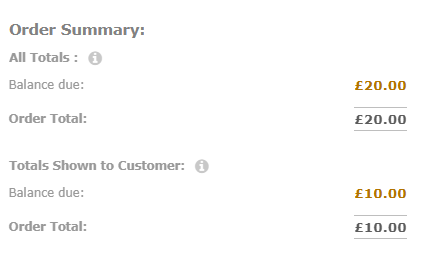
When viewing an order in the Customers section, admins may see two sets of totals:
- All Totals
- Totals Shown to Customer
'All Totals' shows the full internal payment position for the order, including bookings where the price is not shown to the customer.
'Totals Shown to Customer' shows the customer-facing totals only. These are the totals the customer sees in normal customer-facing order information and order emails.
This helps admins manage the full order while also seeing exactly what has been shown to the customer.
The example below shows how an order may display both internal totals and customer-facing totals in the Customers section of the admin panel.
Why totals may look different
If hidden-price bookings are being managed internally, the customer-facing totals and admin totals may not be the same.
This is because customer-facing totals only include payment information that the customer is meant to see, while internal totals help admins manage the full payment position for the order.
This can affect totals such as:
- Total amount
- Total paid
- Amount still to pay (Balance due)
- Payment status information
How hidden prices affect emails
Normal order emails contain customer-facing totals. This means the 'Order placed' email only includes prices and totals for bookings where the price is shown to the customer.
Copies of emails sent to admins also use the customer-facing totals. This means an admin copy of a customer email shows the same totals the customer sees, not the internal 'All Totals' shown in the admin panel.
If the price for a booking is not shown, that hidden price is not included in the normal customer-facing order totals.
There are some payment-related exceptions:
- If an admin requests online payment for a hidden-price booking, the email sent to the customer includes the price of the booking so they can see what they are being asked to pay, along with a button they can use to make the payment.
- After an online payment is made for a hidden-price booking, the payment confirmation email includes the relevant payment or receipt information.
- If an admin marks a hidden-price booking as paid and sends an email to the customer, the email includes payment summary receipt information for that booking.
So while hidden prices are not shown during the normal booking and order flow, payment information is shown when a payment action is taken.
How hidden prices affect reports
Reports in the Analytics section use admin payment summary information.
This means reports show admin totals rather than customer-facing totals.
Important: If you are reviewing payment information in reports, be aware that the totals may include internal payment information that was not shown to the customer.
Example: order with shown and hidden prices
A customer places an order containing three bookings:
- Booking A has a price and the price is shown to the customer
- Booking B has a price but the price is not shown to the customer
- Booking C is free
What the customer sees
The customer-facing order total includes Booking A.
Booking B is not included in the customer-facing total because its price is hidden from the customer.
Booking C does not add anything to the order total because it is free.
What the admin sees
In the admin panel, the order can show both customer-facing totals and internal totals.
The customer-facing totals show the prices included in the customer's order total.
The internal totals can also include Booking B, because its price is available for internal admin tracking even though it was not shown to the customer.
Example: managing internal payment information
You may use hidden prices where you need to track payment internally but do not want customers to see the price as part of online booking.
For example, you may want to record an internal payment value for a booking that is handled manually, funded separately or managed outside the customer-facing checkout process.
In this situation, the customer sees only the totals that apply to customer-facing prices, while admins can use the admin panel to manage the internal payment information.
Where to review order payment information
Admins can review order payment information in the Customers section of the admin panel.
- Go to the Customers section
- Select the customer
- Click on the 'Orders' tab
The 'Orders' tab lets admins view order information linked to the customer.
Where relevant, the order view shows both customer-facing payment information and internal payment information so that admins can understand the full payment position.
Good practice when using hidden prices
Use hidden prices carefully.
Before hiding a price from customers, consider whether you still need to manage that payment internally.
It is worth checking:
- Whether the price should be visible to the customer
- Whether the booking's price should be included in customer-facing totals
- Whether the payment needs to be managed manually
- Whether admins understand the difference between customer-facing totals and internal totals
- Whether reports are being used to review admin totals
This helps avoid confusion when comparing customer emails, customer-facing order information, admin order details and reports.
FAQs
Why is a booking price not included in the customer order total?
A booking price is not included in the customer-facing order total if the price is not shown to the customer.
Why does the admin panel show different totals from the customer email?
The customer email shows customer-facing totals. In the admin panel, the Customers section may also show 'All Totals', which includes internal payment information for prices that are not shown to the customer.
Do normal order emails include hidden prices?
No. The normal 'Order placed' email only includes customer-facing totals. Hidden prices are not included in the normal customer-facing order email totals.
Why did a customer see payment information for a hidden-price booking?
Hidden prices are not shown during the normal booking and order flow. However, if an admin requests payment, marks the booking as paid and sends an email, or sends payment confirmation information, the customer needs to see payment or receipt details for that booking.
What pricing totals are included in reports?
Reports in the Analytics section use internal totals from payment summary information, not just customer-facing totals. This means report totals may include prices that were not shown to the customer during booking or in normal customer-facing order information.
Can admins still see prices that are hidden from customers?
Yes. If a price is hidden from customers, admins can still see and manage the internal payment information in the admin panel. Hidden prices are not shown during the normal customer booking and order flow, but they can still be included in internal totals such as 'All Totals'.
Where should I check the full order payment details?
For an individual customer, use the Customers section in the admin panel and open the customer's order details from the 'Orders' tab. You can also use the 'Orders' report in the Analytics section to review order and payment information across multiple orders.
Summary
The 'Show price' setting controls whether a price is visible to customers during the normal booking and order flow.
If a price is not shown to the customer, it is not included in the normal customer-facing order totals or the normal 'Order placed' email totals.
Payment information is shown where an admin requests payment, marks a booking as paid or sends payment confirmation information.
Admins can review internal payment information in the admin panel where needed.
Reports in the Analytics section use admin payment summary information, so report totals may differ from customer-facing totals.
Related articles
You may also find these articles useful:
- Understanding bookings, orders and baskets in Jezzam
- How customers make multiple bookings using the basket
- How order-based emails work in Jezzam
- How to view and manage customer orders in the admin panel
- How to save customised reports
Was this article helpful?
That’s Great!
Thank you for your feedback
Sorry! We couldn't be helpful
Thank you for your feedback
Feedback sent
We appreciate your effort and will try to fix the article